Hugo Image Management: GitHub vs Cloudflare R2
After setting up my Hugo blog and registering my own domain, I happily started updating the website via git push. But looking at the repository contents, I felt that pushing images together seemed a bit off XD. As I continue updating and maintaining the blog, images will inevitably increase, taking up too much space. Plus, if I switch development environments, I’d have to re-download a bunch of images locally when pulling.
I decided to do some research and compare the original GitHub Pages approach with the current Cloudflare R2 method.
Original: Storing in the static/ Folder (Deployed with Website)
This is Hugo’s traditional standard approach, where images are pushed to GitHub along with your code.
1. How It Works
Hugo copies all contents from the static/ folder directly to the website root directory during compilation.
2. Implementation
- File path: Place images in
/static/images/test.jpg. - Markdown syntax:
(The/at the beginning represents the website root).
3. Pros and Cons Analysis
- Pros:
- Offline writing: You can preview images without internet, and images share the same lifecycle as your content.
- Version control: Image changes are also recorded in Git history.
- Cons:
- Repository bloat: As images increase, the GitHub Repository size grows rapidly, affecting performance over time.
Current: Using Cloudflare R2
To avoid cluttering the GitHub repository with images, I decided to use Cloudflare R2, which offers 10GB of free storage—more than enough for now.
⚠️ Note: Although there’s a free tier, you still need to enter payment information to activate it.
1. Enable Cloudflare R2 Storage Bucket
- Log in to the Cloudflare dashboard, click Storage & Database > R2 Storage in the left menu.
- Click Create bucket.
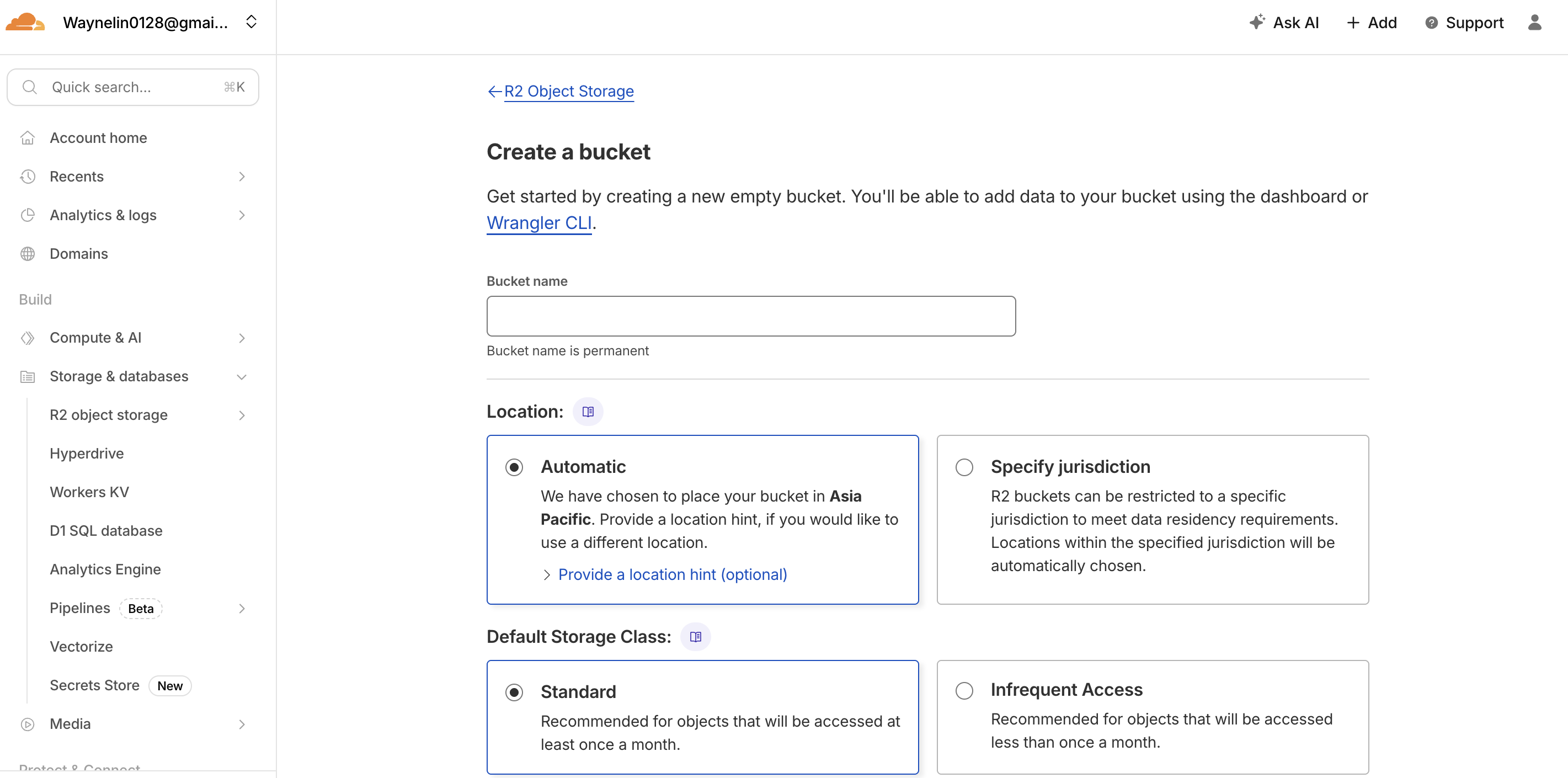
- Name your bucket (e.g.,
my-blog-assets) and click Create bucket to complete.
2. Configure Public Access (Make Images Visible)
By default, R2 content is private. We need to connect it with your domain to display images on the web.
- Enter the bucket you just created, click the Settings tab at the top.
- Find the Custom Domains section.
- Recommended: Use a custom domain
- Click Connect Domain.
- Enter a subdomain (e.g.,
xxx.yourdomain.com). - Cloudflare will automatically handle DNS records for you. Your image URLs will become
https://xxx.yourdomain.com/photo.jpg.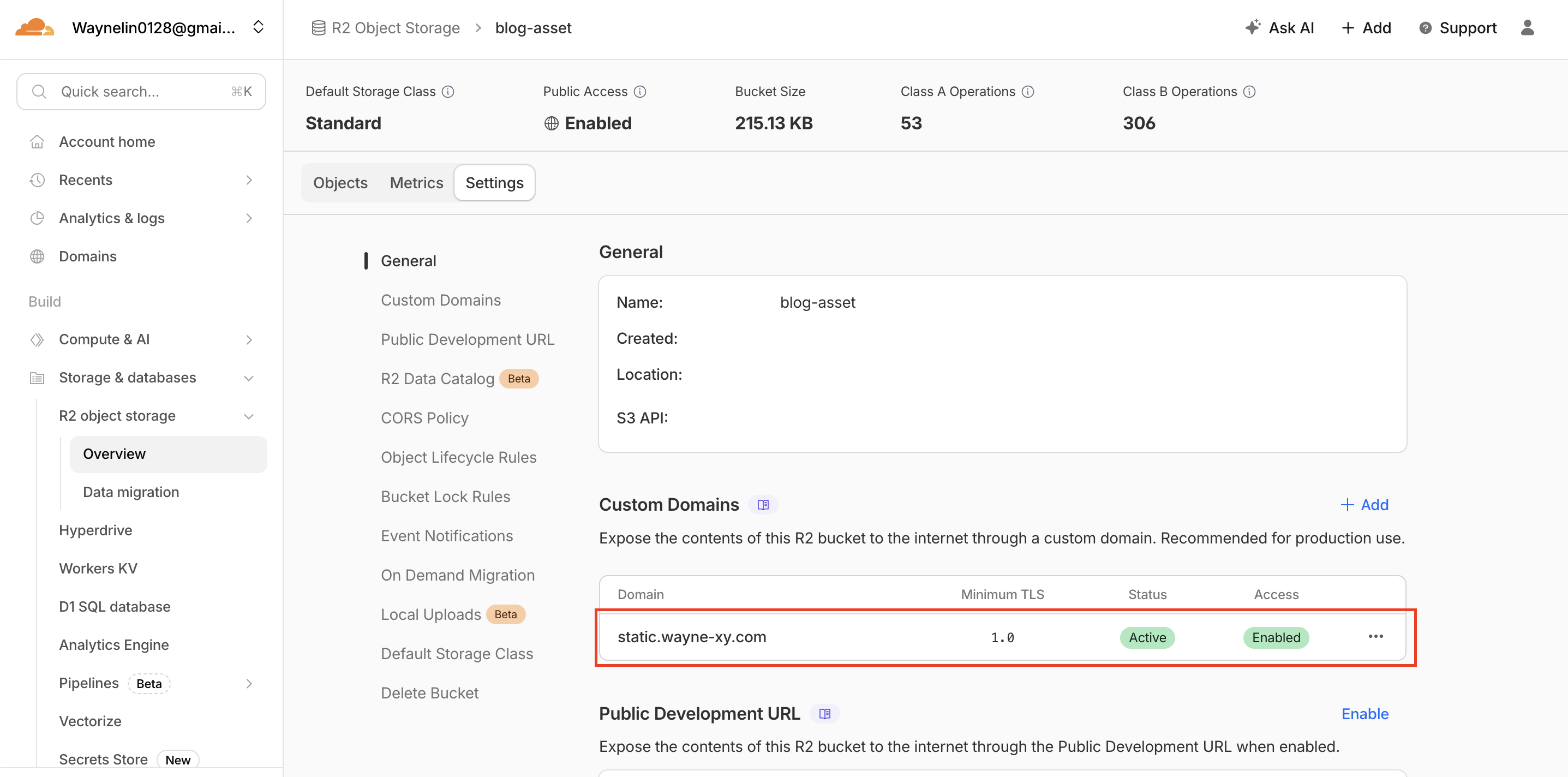
3. Upload Images and Reference in Hugo Articles
-
On the Bucket page, click Upload and drag your images in.
-
After uploading, click on the image to see its URL. When writing markdown articles, simply reference it directly.
